How to Edit Images and Create Professional Videos with Simple Tools

PicYou
Nov 20, 2025
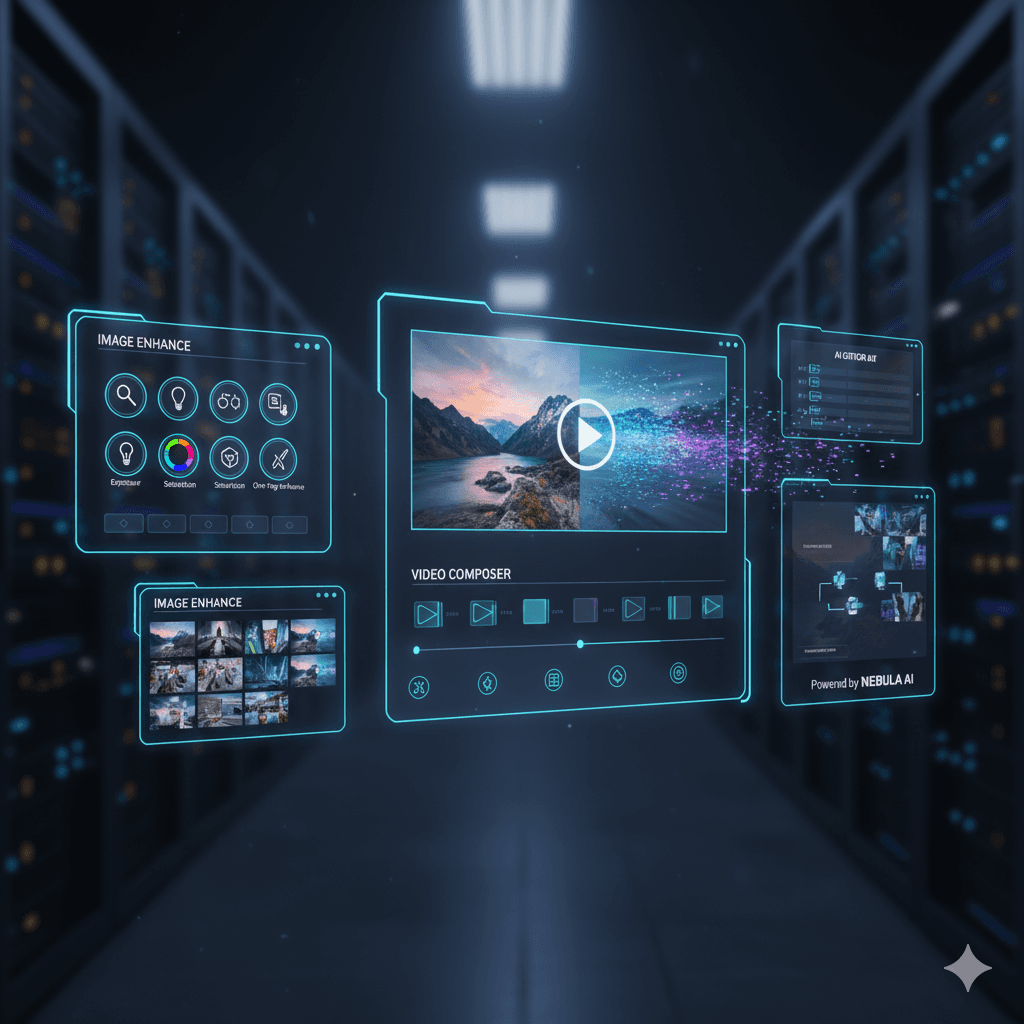
Creating polished images and professional-looking videos no longer requires expensive software or years of editing experience. Thanks to modern AI and beginner-friendly tools, anyone can turn simple photos into stunning visual content—whether for social media, business marketing, educational content, or personal projects.
In this guide, you’ll learn how to edit images quickly, how to turn them into high-quality videos, and which simple tools make the process smooth even for beginners.
1. Why Editing Images and Creating Videos Has Become Easier Than Ever
For many years, professional visual creation required powerful computers and complex software like Adobe Premiere Pro or Photoshop. Today, AI-powered online platforms allow you to:
Remove backgrounds automatically
Enhance low-resolution images
Apply filters and corrections in one click
Convert photos into animated, cinematic videos
Add transitions, captions, music, and effects effortlessly
Tools like Picyou.ai, Canva, CapCut, and various image enhancers have simplified the entire workflow, making high-quality editing accessible for everyone.
Step 1: Preparing and Editing Your Images
Before turning your photos into videos, start with clean, optimized images. Here are the essential steps:
Enhance Quality Automatically
Use AI enhancement tools to improve clarity, sharpness, and lighting. Features like Super-Resolution can boost photo quality up to 4×.
Remove Backgrounds Instantly
If your final video will have motion backgrounds or overlays, remove the image background with one click using:
picyou.ai Background Remover
remove.bg
Canva Background Removal
Apply Consistent Filters
Visual consistency is key for professional-looking videos. Apply unified:
Color grading
Brightness & tone adjustments
Skin retouching (for portraits)
Resize and Crop for Video Formats
The standard video aspect ratios include:
16:9 — YouTube, desktop
9:16 — TikTok, Instagram Reels
1:1 — Instagram feed
Prepare your images in the intended size before combining them into a video.
Step 2: Turning Your Images Into Professional Videos
After image editing, the next step is converting them into dynamic videos. Here are the easiest methods:
Method A: Use AI Image-to-Video Generators
Tools like Picyou.ai Image-to-Video automatically add:
Cinematic camera motion
Parallax effects
Zoom-in/zoom-out
Background animation
Smooth transitions and particle effects
This allows a static image to transform into a dynamic sequence with depth and motion.
Perfect for:
TikTok content creators
Business promo videos
Digital storytelling
Product showcases
Method B: Create Slideshow-Style Videos
Combine multiple edited photos into a timeline with:
Transitions
Captions
Background music
Sticker overlays
Beginner-friendly tools include:
CapCut
Canva Video Editor
Adobe Express
iMovie
Method C: Add Motion Graphics and AI Effects
For a more cinematic feel:
Add motion blur
Animate text overlays
Insert animated backgrounds
Use face animation tools
Use AI to simulate camera movement
These effects make your video stand out even if you start with simple images.
Step 3: Final Editing and Exporting
Once your images have been converted into a video sequence, finalize the project:
Add Music and Sound Effects
Music helps set the tone—choose upbeat tracks for social media, or calm cinematic tracks for storytelling.
Apply Color Grading
Color grading unifies the entire video’s visual tone.
Add Subtitles or Captions
Subtitles improve engagement and accessibility, especially for mobile viewers who watch videos with sound off.
Export in High Quality
Recommended export settings:
1080p for standard content
4K for professional or commercial videos
MP4 format for compatibility
5. Best Simple Tools for Beginners
Here are the easiest platforms to start with:
Picyou.ai
AI image enhancement
Photo-to-video animation
Background removal
Professional templates
Canva
Simple drag-and-drop editor
Slideshow creation
Video templates
CapCut
Fast social media editing
Transitions & effects
Mobile-friendly
Adobe Express
Clean templates
Quick online video creation
All these tools require no editing experience and work perfectly for beginners.
6. Tips for Making Your Videos Look Truly Professional
To elevate your results:
Use high-quality images (enhance them if needed)
Keep colors consistent across all photos
Avoid overcrowded text
Use smooth transitions, not too many flashy ones
Add subtle motion effects to avoid a static look
Maintain clean composition
Following these tips makes your videos feel organized, cinematic, and visually appealing.
Conclusion
Creating professional videos from images is now easier than ever—thanks to AI-powered tools and intuitive editing platforms. With just a few steps—enhancing images, applying consistent edits, animating or combining them into video sequences—you can create polished content suitable for marketing, personal branding, storytelling, or social media growth.
Whether you're a beginner or someone improving your workflow, simple tools like Picyou.ai, Canva, and CapCut can help you produce high-quality videos without complicated software or design experience.
People Also Read

How to Turn Text into Realistic Images: The Complete Beginner’s Guide
In recent years, AI image generation has evolved from a fun experiment into a powerful creative tool used by designers,
Learn More
How to Use AI to Transform Static Images into Dynamic Videos
Turning a single photo into a dynamic video used to require professional editing skills
Learn More
How to Turn Your Photos into Stunning Videos in Just a Few Steps
How to Turn Your Photos into Stunning Videos in Just a Few Steps
Learn More