How to Convert Images into High-Quality Videos Using Free Tools

PicYou
Nov 20, 2025
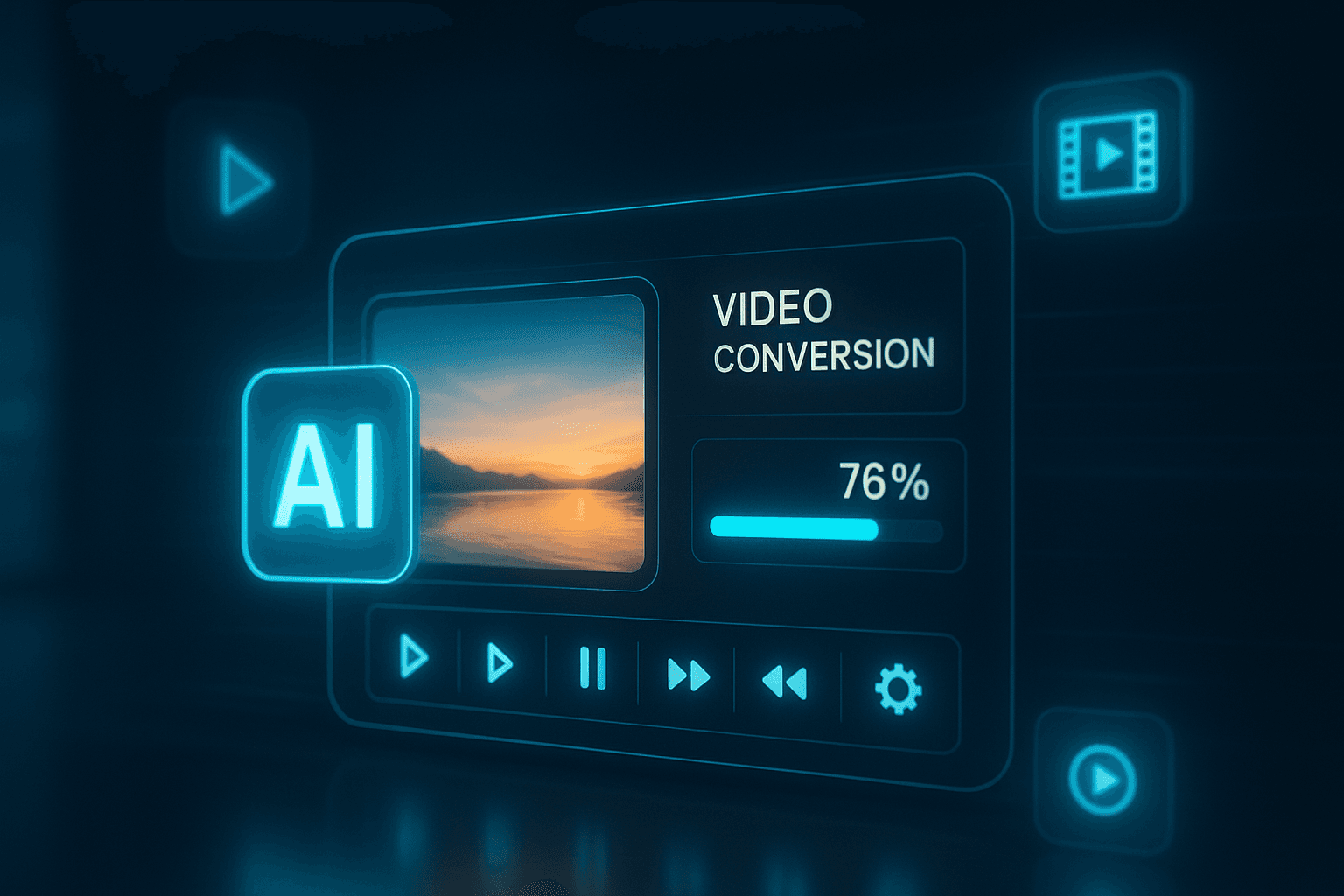
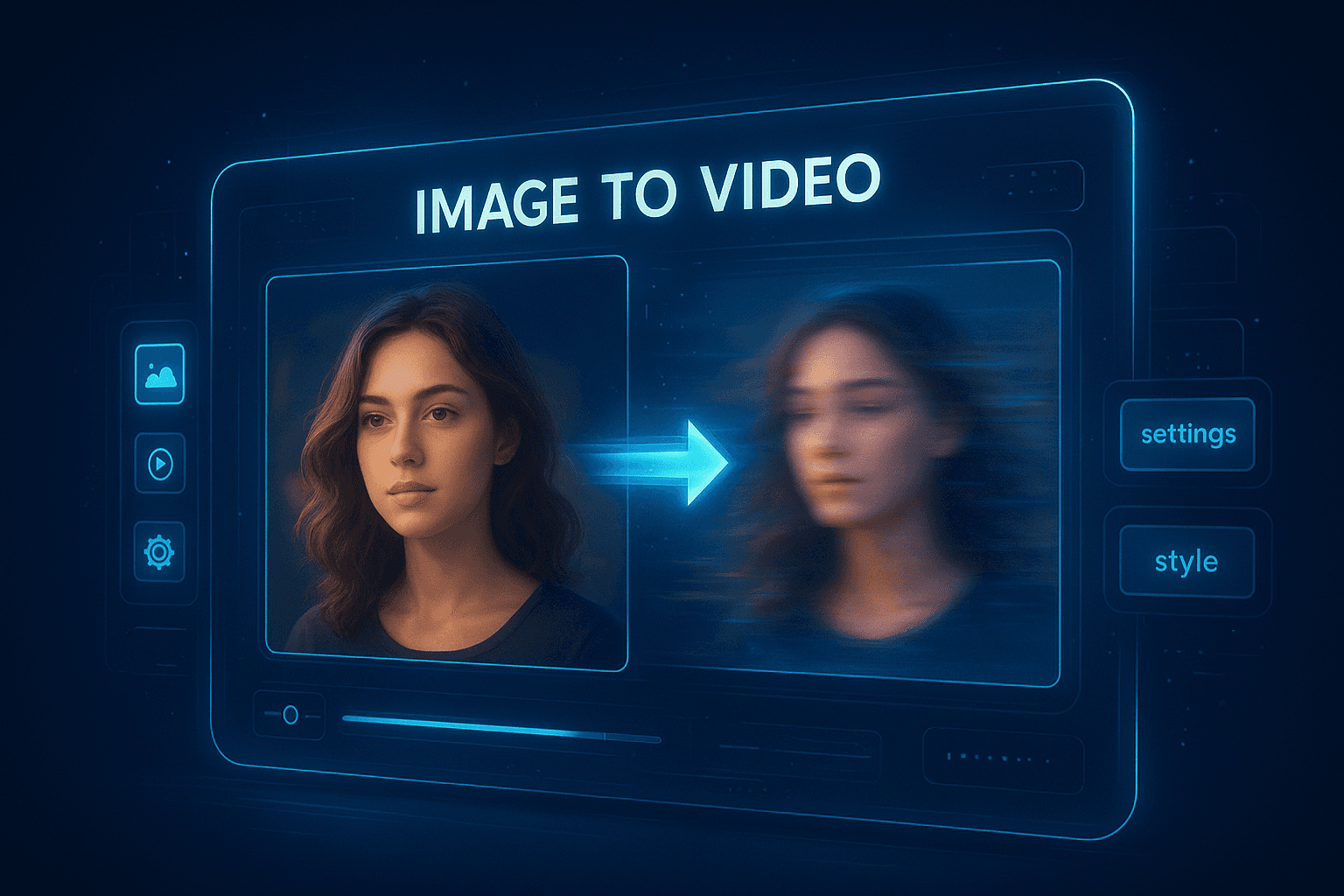
Turning static images into high-quality videos has become easier than ever—thanks to powerful free tools and AI-powered platforms. Whether you're a content creator, marketer, student, or simply someone who wants to bring photos to life, image-to-video conversion can dramatically enhance your storytelling and content engagement.
In this guide, we’ll show you how to convert images into professional-looking videos using free tools, what features to look for, and how to get the best possible results. Everything here follows modern content creation best practices and aligns with Google’s E-E-A-T standards for expertise and usefulness.
Why Convert Images Into Videos?
Videos generate 12x more shares than images and text combined. For businesses and creators, converting images to video can help you:
Create social media reels, TikToks, or YouTube Shorts
Animate still photos for ads or brand campaigns
Transform product images into explainer videos
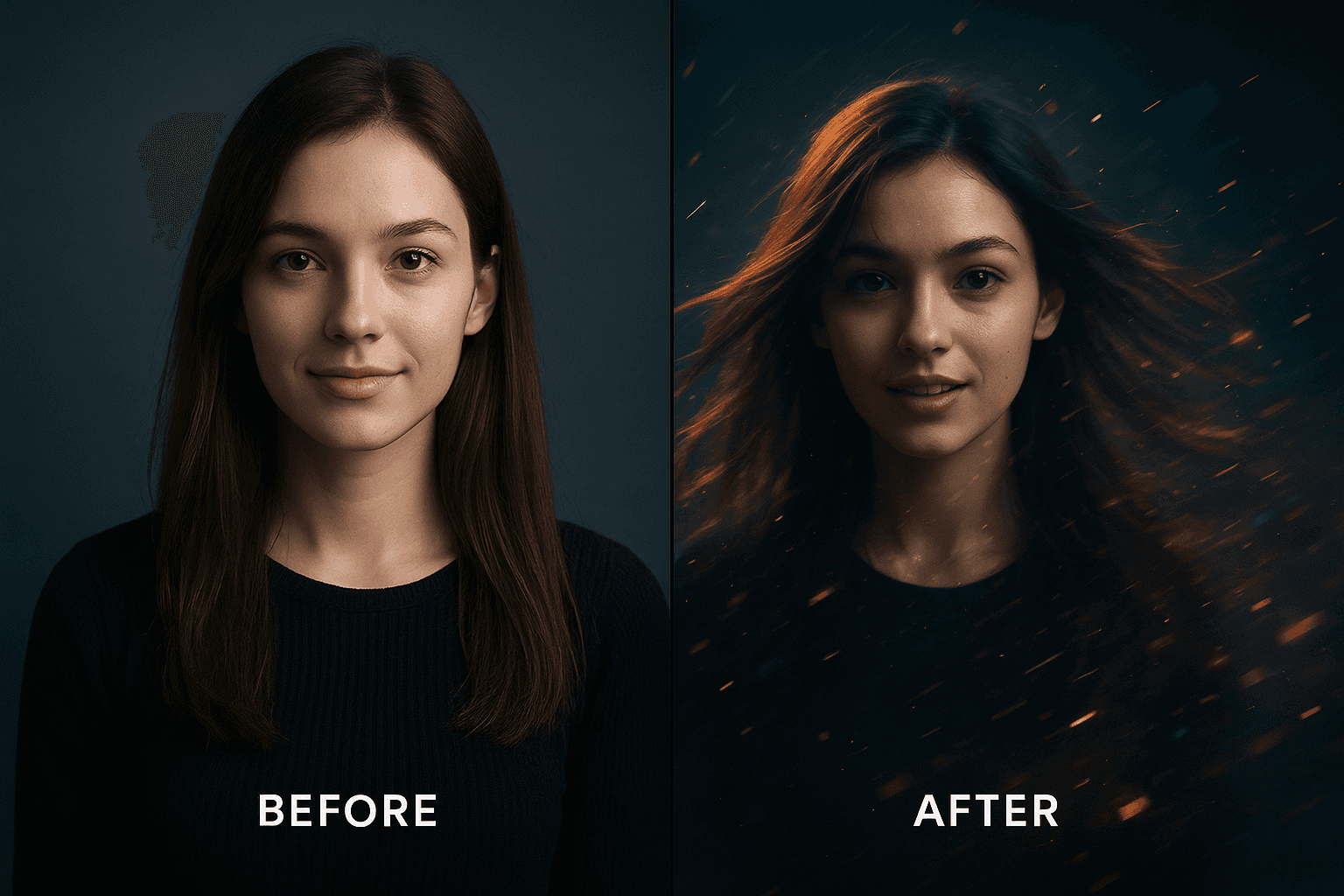
Add movement and emotion to portrait photography
Produce slideshow-style presentations that feel cinematic
Thanks to AI and free editing tools, you no longer need complex software or professional editing skills.
Best Free Tools to Convert Images Into Videos
Here are some trusted free platforms you can use:
1. Picyou.ai (Free AI Image-to-Video Generator)
One of the easiest AI tools for turning still images into realistic motion videos.
Best for: portraits, product images, lifestyle shots
Key features:
AI motion generation
Cinematic camera movement
High-resolution outputs
One-click style selection
2. CapCut (Free Mobile & Desktop Editor)
Great for slideshow-style videos or adding transitions.
Best for: social creators
Key features:
Templates for TikTok & Instagram
Motion effects and filters
Audio and subtitle integration
3. Canva (Free Online Video Editor)
Perfect for beginners needing pre-made layouts.
Best for: presentations, business content
Key features:
Slideshow timelines
Text, icons, stock media
Drag-and-drop editing
How to Convert Images Into High-Quality Videos (Step-by-Step Guide)
Below is a simple process you can follow using any free tool, including AI platforms like Picyou.ai.
Step 1: Choose Your Images
Select clear, high-resolution images for the best results.
If you're using portraits, ensure:
Good lighting
Sharp focus
Neutral background (optional)
If you're using product shots:
Clean angles
Consistent style
Minimal clutter
Step 2: Upload Images to Your Chosen Tool
Most tools allow simple drag-and-drop uploads.
AI platforms typically support:
JPG
PNG
WEBP
4K photos (recommended for crisp video output)
Step 3: Choose a Video Style or Motion Effect
Depending on the tool, you can add:
AI motion (for portraits or scenery)
Parallax depth
Zoom-in / zoom-out movement
Cinematic camera movement
Dynamic transitions
Filters and LUTs
Background music
AI tools like Picyou.ai can automatically animate hair, eyes, lighting, and subtle facial movements.
Step 4: Adjust the Timeline
If you're making a slideshow-style video:
Add each image to the timeline
Set duration (2–4 seconds per image works well)
Add transitions
Include text or captions if needed
For AI-generated motion videos:
Choose animation intensity
Select mood or style
Adjust output length (usually 3–6 seconds)
Step 5: Export Your Video in High Resolution
To ensure professional quality:
Select 1080p or 4K (if available)
Use MP4 for universal compatibility
Choose 24–30 FPS for smooth movement
Free tools often offer HD exports without watermark.
Tips for Creating High-Quality Image-to-Video Content
1. Start with High-Resolution Photos
The better the input, the better the video result. Avoid blurry or pixelated images.
2. Use Cinematic Motion
Subtle movement appears more natural than extreme animation.
Good examples:
Slow zoom
Dolly-in camera effect
Soft parallax depth
3. Keep Transitions Smooth
Hard cuts can feel abrupt. Use fade or slide transitions for a polished look.
4. Add Music or Sound Design
Even simple background audio increases viewer engagement significantly.
5. Choose a Consistent Style
This helps your video look professional:
Color palette
Font style
Visual theme
Best Use Cases for Image-to-Video Conversion
Social Media Marketing
Make eye-catching videos from brand or lifestyle photos.
Product Demos
Turn product images into rotating 3D-like motion videos.
YouTube Shorts & TikTok
AI motion videos perform exceptionally well on short-video platforms.
Memory & Personal Projects
Transform travel photos or family portraits into emotional videos.
Conclusion
Converting images into high-quality videos has never been easier. With free tools—especially AI-powered platforms like Picyou.ai—you can produce cinematic, professional-looking videos in just a few clicks. Whether you're creating content for social media, marketing, or personal projects, image-to-video tools can dramatically elevate your storytelling and engagement.
Ready to try it?
Start with a clear photo, upload it, choose a motion style, and watch AI transform your image into a stunning video.
People Also Read
How to Edit Images and Create Professional Videos with Simple Tools
Creating polished images and professional-looking videos no longer requires expensive
Learn More
How to Use AI to Transform Static Images into Dynamic Videos
Turning a single photo into a dynamic video used to require professional editing skills
Learn More
How to Turn Your Photos into Stunning Videos in Just a Few Steps
How to Turn Your Photos into Stunning Videos in Just a Few Steps
Learn More